

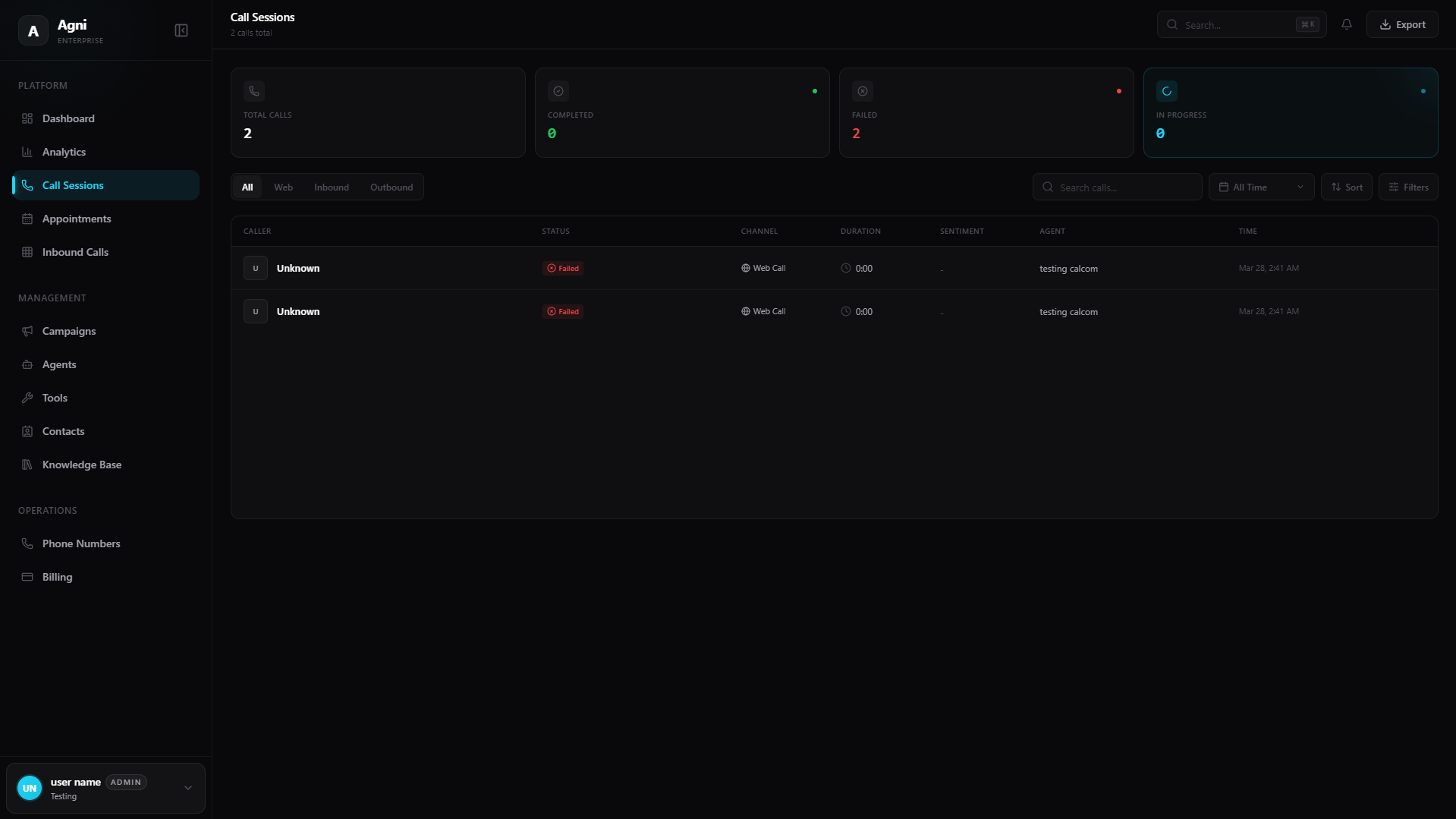
Session Metrics
At the top of the dashboard, a quick-glance summary provides the real-time status of your call volume:Total Calls
The cumulative number of all call sessions across all channels and agents.
Completed
Calls that successfully reached their natural conclusion (agent or caller hung up normally).
Failed
Calls that dropped, failed to connect, hit a timeout, or encountered a system error.
In Progress
Live calls currently being handled by your agents right now.
Call Channels
Agni consolidates traffic from multiple channels into a single view. You can filter the main table using the quick tabs above the list:Web
Calls initiated through your embedded Agni web widget on your website.
Inbound
Phone calls received by your provisioned phone numbers via PSTN or SIP.
Outbound
Phone calls initiated by your agents via campaigns, API triggers, or test calls.
Call Data & Insights
For every session, the table captures granular data to help you evaluate agent performance and customer sentiment:| Column | Description |
|---|---|
| Caller | The phone number or web session ID of the user. |
| Status | Current state — Completed, Failed, or In Progress. |
| Channel | Origin of the call — Web, PSTN, or SIP. |
| Duration | Total length of the conversation. |
| Sentiment | AI-generated assessment of the caller’s mood — Positive, Neutral, or Negative. |
| Agent | The specific AI agent that handled the interaction. |
| Time | Timestamp when the call was initiated. |
Call Detail View
Click on any row to open the full call detail view. This gives you a deep dive into everything that happened during the conversation:Full Transcript
Full Transcript
A timestamped, speaker-labeled transcript of the entire conversation. Each turn is marked as either Agent or Caller so you can follow the dialogue flow. Use this to audit agent behavior, verify compliance, or debug prompt issues.
Call Recording
Call Recording
Listen to the full audio recording of the call. Playback controls let you skip ahead, rewind, and adjust speed. Recordings are available for phone calls (web calls may vary based on browser permissions).
AI Summary
AI Summary
If post-call analysis is enabled on the agent, you’ll see an AI-generated summary of the conversation — key topics discussed, action items, and outcomes. This is powered by the
analysis_summary_prompt configured on the agent.Extracted Data
Extracted Data
If structured data extraction is enabled, the AI automatically pulls out key fields (e.g., customer name, email, appointment time, issue category) and displays them in a structured format. This data is also sent to any configured webhooks.
Sentiment Score
Sentiment Score
An AI-assessed sentiment rating based on the caller’s tone, word choice, and conversational dynamics throughout the call.
Call Metadata
Call Metadata
Technical details including call duration, latency metrics, the agent and model used, caller’s phone number, channel type, and timestamps.
Search, Filter, and Export
To manage large volumes of call data, utilize the toolbar located above the table:Search
Look up specific calls by phone number, agent name, or session ID. The search works across all columns.
Date Range & Filters
Narrow down your view by selecting specific timeframes (e.g., Today, Last 7 days, Last 30 days) or applying advanced filters to isolate calls by status, channel, agent, or sentiment.
Pro Tip: Export filtered data regularly and pipe it into your CRM or analytics platform. Combine call outcomes with pipeline data to measure the actual revenue impact of your voice agents.